Merchant setup guide · By WarrantyOS · October 2026
How to Set Up Product Warranty Registration on Shopify
A warranty form is useful only if your support team can connect it to the purchase, coverage and next action. Here is how to build that workflow with WarrantyOS, from your first rule to a customer claim.
This guide is written by the team behind WarrantyOS. The steps below describe our app; other apps have different setup and pricing.
1. Prepare your coverage policy
Choose which products are covered, the number of months from purchase, whether a serial number is required, and how your team will handle claims. Write down what customers should do and where they can contact your store.
Start with one product or collection whose policy is clear. Avoid overlapping collection rules until you have checked which products belong to each collection. Keep your published warranty terms consistent with the rules you configure.
Have a store-owned test order and access to its checkout email ready. Use a test store or an appropriate existing test order so the check does not charge a customer. Do not present a test order as a real sale or a test claim as a customer result.
2. Install WarrantyOS and create a warranty rule
Open the WarrantyOS listing in the Shopify App Store, review the permissions and billing terms, and install it in the intended store. The listed Starter plan is $19 USD/month with a 14-day free trial; confirm the current terms on Shopify before accepting.
- In Shopify Admin, open Apps → WarrantyOS.
- On Home, select Add warranty rule.
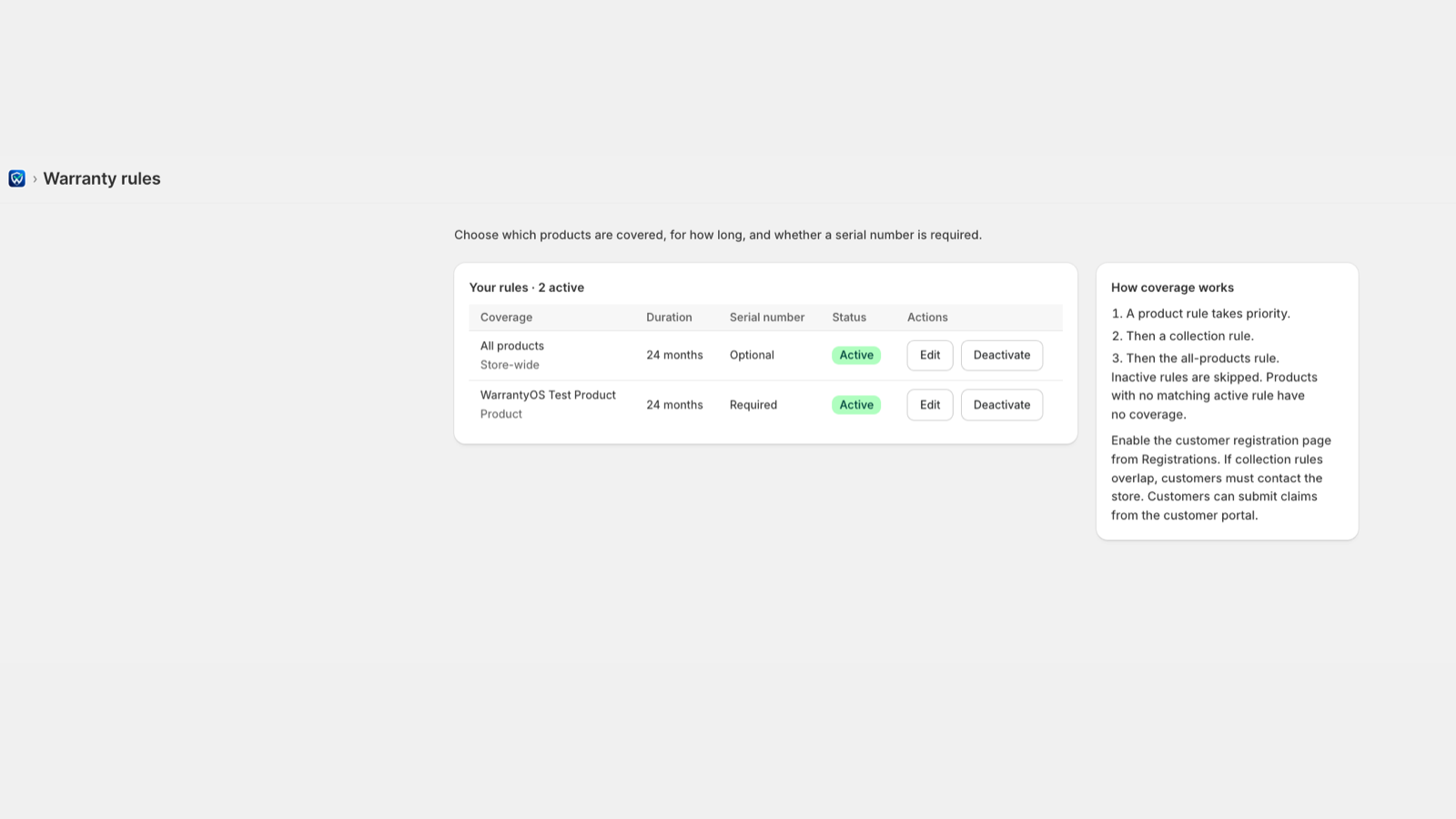
- Choose all products, a specific product, or a collection. For a product or collection, select the actual item from your store.
- Enter Warranty duration (months) and choose whether a serial number is required.
- Keep the rule active and select Save rule.
A product rule takes priority over a collection rule, followed by the all-products rule. Inactive rules are skipped. A product without a matching active rule has no coverage in the app. If collection rules conflict, customers are asked to contact the store.
3. Enable the customer portal and publish its link
- Open Registrations in WarrantyOS, or choose Manage customer portal from Home.
- Select Enable customer portal once the coverage rules are ready.
- Open Open customer registration page and copy that page’s URL. Use your own store’s link.
- In Shopify Admin, go to Content → Menus. Open a menu, add an item such as “Register your warranty,” paste the portal URL in the link field, select the destination, then add the item and save the menu.
- Open the storefront as a customer and check that the menu is displayed by your theme and the link opens the correct store’s portal.
Shopify’s menu instructions explain how to add and save a link. You can also place the link on your existing warranty information page. Explain that customers need their order number and checkout email.
Home considers setup complete when an active rule exists and the portal is enabled. That does not prove your storefront link is visible: check it separately.
4. Check the complete customer journey
Use your store-owned test purchase to check each step. Keep this activity separate from your real customer activation figures.
- Open the customer registration page and enter the order number and email used at checkout.
- Select an eligible purchased product, enter its serial number if required, and submit the registration.
- Check the confirmation, product and warranty expiry. Open Registrations in the merchant app and find the saved record.
- From the customer portal, verify the order again and start a claim for the registered product. Describe the problem and attach one to three JPEG, PNG or WebP photos, each no larger than 5 MB.
- Open Claims in WarrantyOS. Check the product, description and photos before recording a decision. Do not approve a real replacement merely to test the app.
- Check Email notifications for settings and delivery status, and verify receipt using an inbox you control. A saved claim alone does not prove that its email was delivered.
An approved claim can lead to a replacement draft. Review that draft in Shopify before completing it. Creating a draft is not automatic fulfillment, and it does not by itself exclude a replacement order from your advertising analytics.
Example: one product, one registration, one claim
This is an illustrative walkthrough of the workflow, not a live customer record or an interactive submission form.
Electric kettle · 24 months
Choose the kettle product, require a serial number and save an active rule. Enable the portal.
Verified Shopify purchase
The customer verifies the order, chooses the kettle and enters its serial number. Coverage runs from the purchase date, not the day of registration.
Problem + photo evidence
The customer describes the fault. Your team reviews the claim, records a decision and decides whether a replacement draft is appropriate.
Editing a rule later does not rewrite the coverage terms already saved on a registration. Check the saved registration when reviewing an existing customer’s coverage.
Common setup questions
Why can’t a customer find their order?
Check that they are using the correct store’s portal, order number and checkout email. Review the purchase verification information in Registrations: without historical-order access, verification covers the last 60 days. Do not promise support for older orders until the store’s access is confirmed.
Can customers register purchases from Amazon or a retail shop?
This workflow verifies purchases against orders in the connected Shopify store. WarrantyOS does not currently provide an external receipt upload or import workflow for those purchases.
Does requiring a serial number validate it against my inventory?
No. The app collects the serial number and checks for duplicate registrations for the product. That is different from checking a manufacturer’s inventory or authenticating the physical item.
Is registration the same as legal warranty eligibility?
The app records your configured coverage; it does not determine a customer’s statutory rights. Review your published policy separately and avoid implying that an optional registration removes rights a customer already has.
Is WarrantyOS worth $19/month if I only need a form?
A simple form or another registration app may be sufficient if you only collect product details. Evaluate WarrantyOS when you need purchase verification, coverage rules, registration-linked photo claims and a merchant decision workflow together. Use the trial to check whether that workflow fits your actual support process.
Try the workflow with one product
Review the app, set one coverage rule and verify the journey before sharing it with customers.
View WarrantyOS on Shopify App Store$19 USD/month after the 14-day trial. Current terms are shown on Shopify.